

Figma is the design tool of choice for many user interface (UI) design teams, but some alternatives may be a better fit.
Figma is the design tool of choice for many user interface (UI) design teams, but some alternatives may be a better fit.
We've seen how various design tools empower teams to collaborate effectively, whether they're crafting wireframes, building prototypes, or iterating on design systems. With its expanding ecosystem and features, Figma has earned its place as the design tool of choice for many in the industry. But many alternatives have since launched that can complement or even replace Figma in your design process.
In this article, we'll explore other tools to expand your design toolkit beyond Figma, whether you're just starting out or enhancing your current creative process.
Key features of Figma
Figma is a powerful user interface and experience (UI/UX) design tool that helps teams create website and app interfaces. Since its launch in 2016, it’s quickly become the industry-standard interface and prototyping tool.
Here are some of the features that skyrocketed its popularity:
- Real-time design collaboration so multiple team members can work on the same designs, mockups, and wireframes simultaneously
- Components and variants that UI designers use to quickly build intuitive navigation systems
- Prototype exporting so designers can send layouts to developers and conduct user testing
- Plugins and integrations to improve performance and interact with other software programs, like the Figma to Webflow plugin
- Cross-platform accessibility that lets teams work from the web, Microsoft, Linux, or macOS
- Auto layout that follows customizable rules to responsively size elements and add spacing as you design
Considerations when using Figma
Figma offers a powerful array of design tools, but there are a few considerations to keep in mind when deciding if it’s the right fit for your needs.
Learning curve for new users — Figma’s UI is straightforward and well-organized, but with so many features available, it can be a complex tool that takes time to learn. Figma offers a resource library that beginners can explore at their own pace.
Increased complexity with large projects — As projects grow in size and complexity, managing and navigating large Figma files can become challenging. With more layers, components, and design elements, it’s possible to experience slower load times or occasional crashes, making it difficult to update your designs.
Memory management — Since Figma is browser-based, it relies on WebAssembly Memory (WASM) to run efficiently. As projects become more complex, this can lead to high memory usage, which can slow down your device. You may need to optimize your Figma files constantly, which could hinder your creative process.
How we chose these alternatives
We chose these Figma alternatives based on a few criteria:
- Ability to expand design toolkits and systems
- Skill level required to use the tool
- Fulfillment of common design and UX/UI needs
- Code exports, unique integrations
- Browser or app compatibility
Top 10 Figma alternatives
If you’re considering a switch from Figma or deciding which tool to start with, these are the 10 best competitors you should consider.
1. Penpot (An open source design platform)
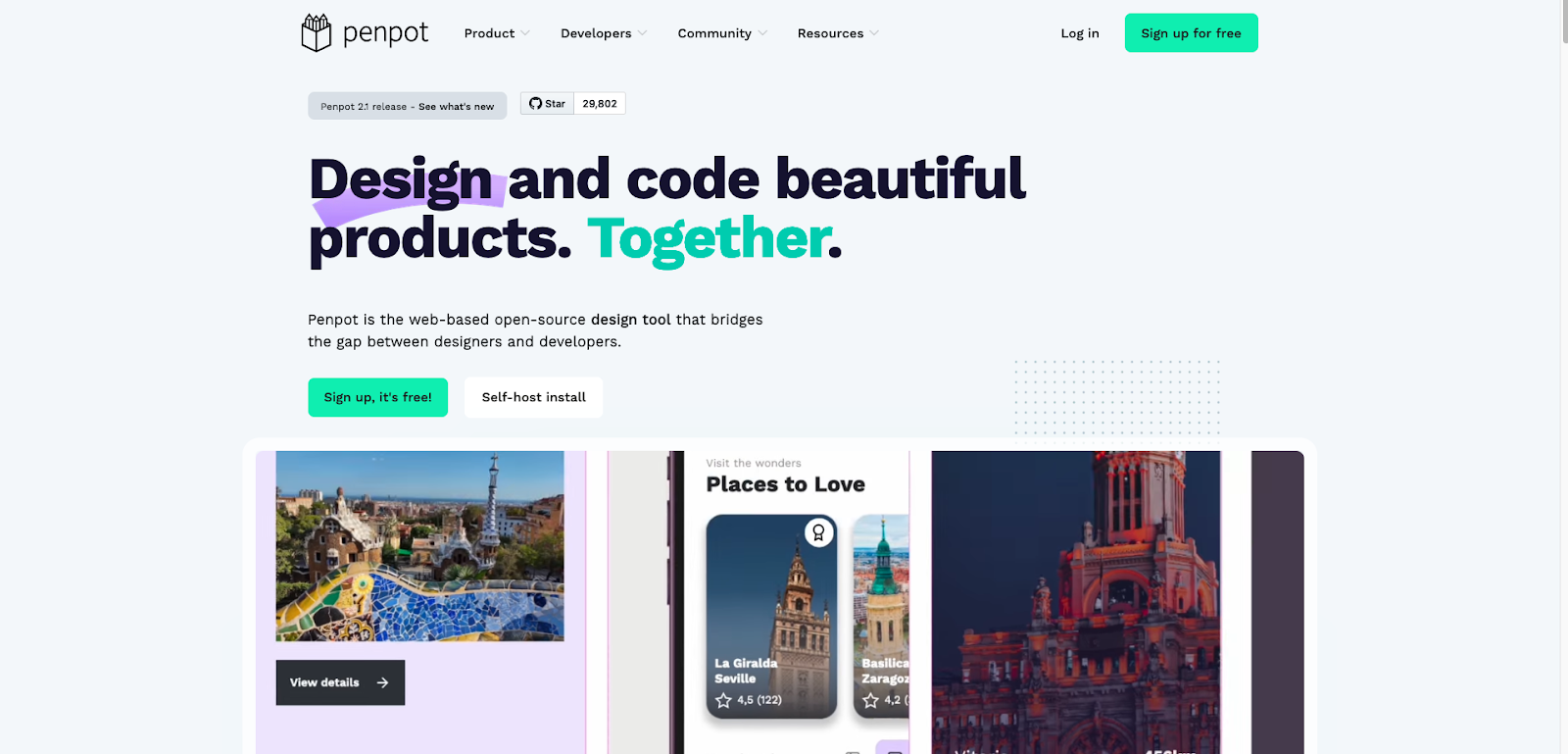
Developed in 2019 as a passion project, Penpot is an open source, free Figma alternative with a unique UI and most of the same features as Figma, such as prototyping and real-time collaboration. It stands out because it exports the associated HTML/CSS whenever you export your designs, giving developers a head start in turning designs into functioning interfaces. With a browser-based experience, the free version is also more generous than Figma’s because it offers unlimited designs and collaborators.
Best for: Open-source, cross-platform UI/UX design and prototyping
2. Adobe XD (A vector-based design and prototyping tool)
Adobe XD’s interface closely mirrors Figma’s and supports similar features like collaborative design, interactive prototypes, and design handoff tools. But achieving full functionality on Adobe XD often requires installing various plugins and integrations, making the initial setup a bit time-consuming. Adobe XD supports design specs and basic code snippets for CSS, iOS/Android.
Since Adobe purchased Figma, integration capabilities are mainly within the Adobe ecosystem (Photoshop, Illustrator, and After Effects). This means if you’re not already using Adobe’s suite, the tool may feel limited in scope. For Adobe users, though, XD offers a highly streamlined workflow. Adobe XD has desktop apps for Windows and macOS.
Best for: Designers already in the Adobe system
3. Axure RP (A prototyping and wireframing tool)
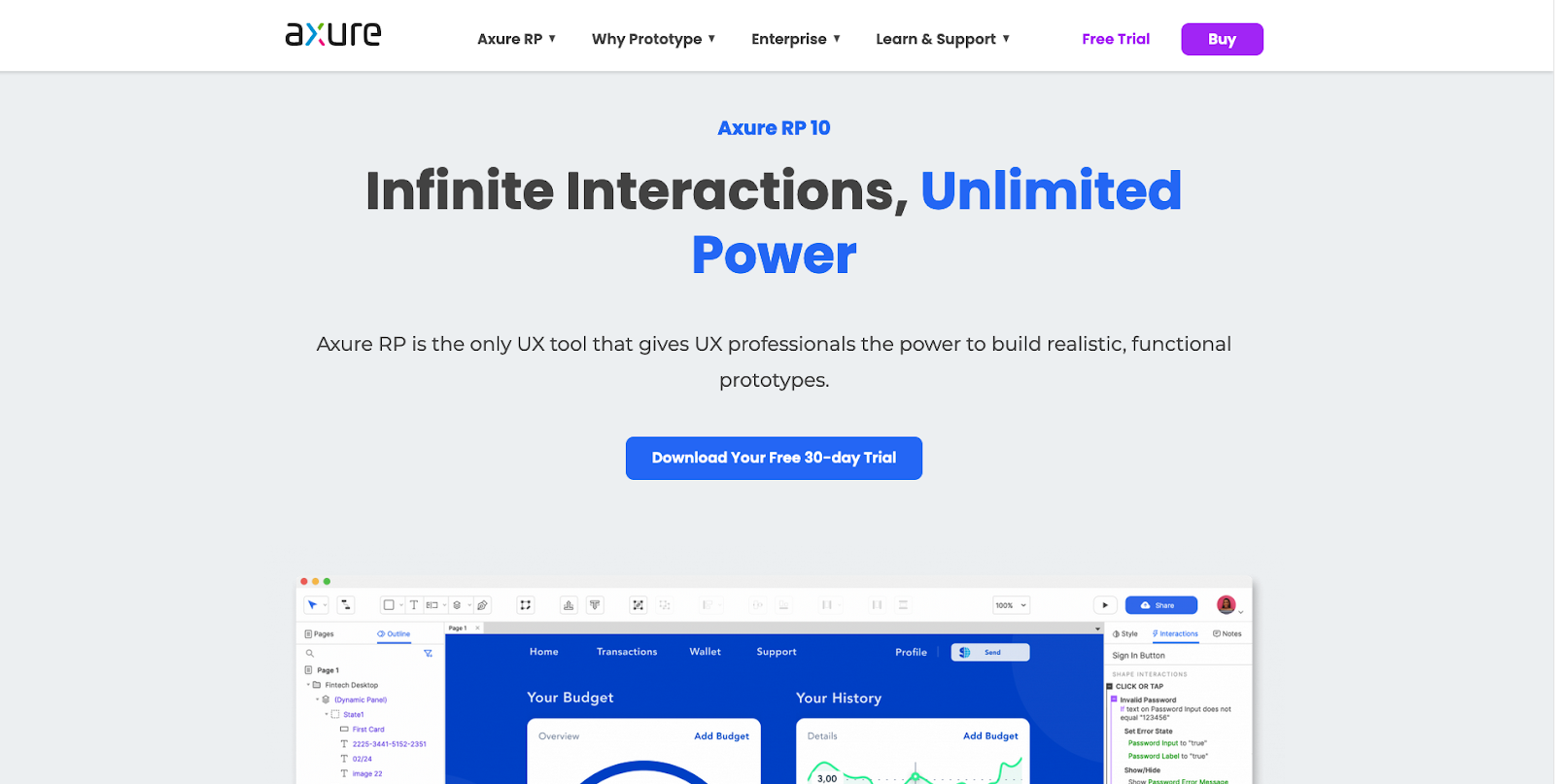
Axure RP is primarily a prototyping and wireframing tool but also works effectively for creating full-featured UI designs. It supports real-time collaboration and offers powerful design tools like multi-state containers, dynamic content, and conditional logic for more advanced interactions. The platform is the premier choice for teams needing a tool that can quickly and reliably turn designs into stable, interactive prototypes.
It’s also less expensive than Figma. The free trial lasts 30 days, so an upgrade is necessary for long-term use. Axure RP exports HTML/CSS/JS prototypes that run in browsers for demos and testing, and it integrates with tools like Jira and Confluence for workflows. It offers desktop apps for Windows and macOS.
Best for: Complex interactions and advanced UX prototyping
4. Sketch (A macOS-native design tool)
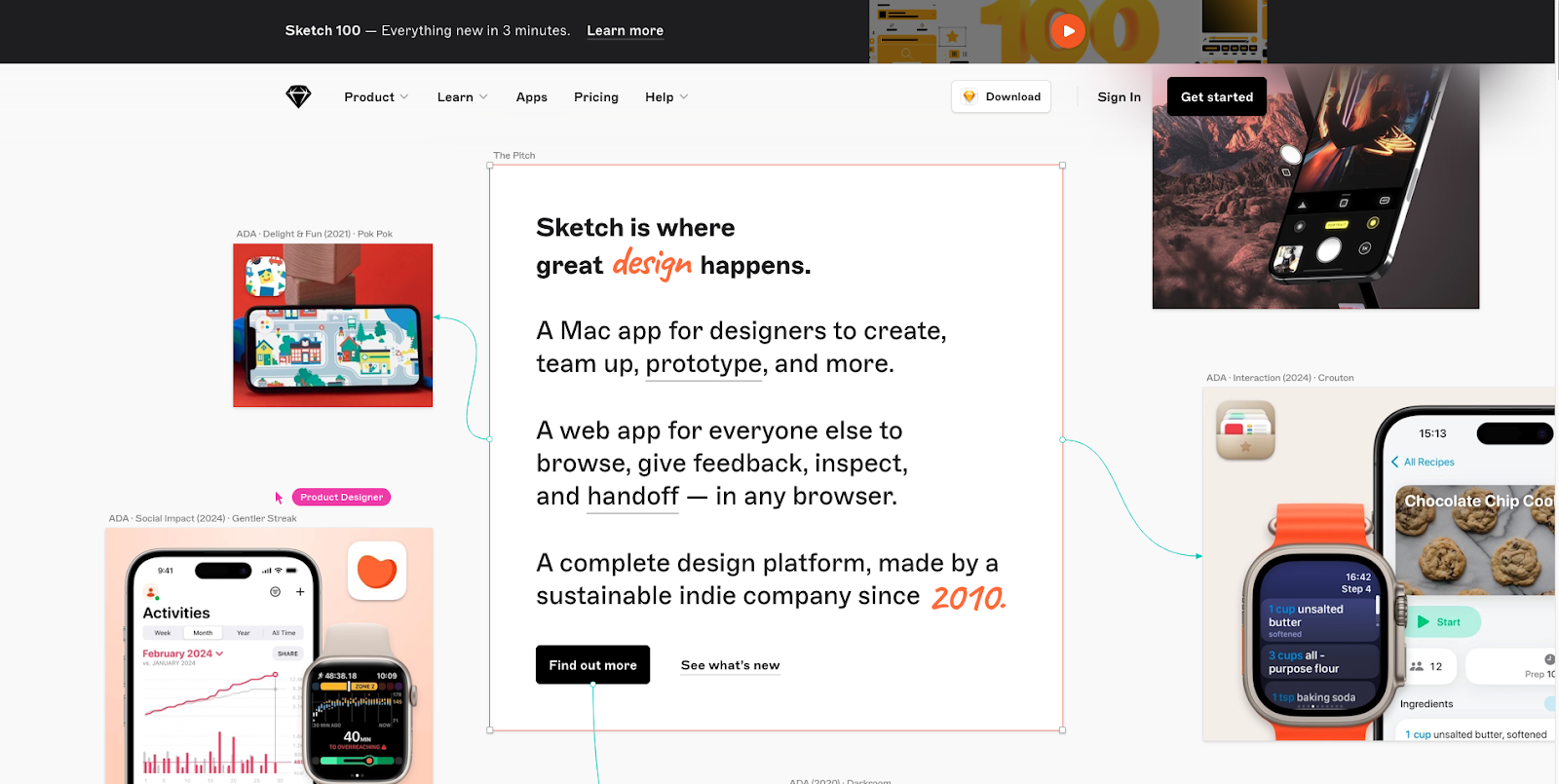
Released in 2010 by a group of devoted indie developers, Sketch predates Figma. It’s finally caught up with Figma’s extensive feature list, but its desktop app is only available on macOS. Everyone else will need to use the web app, which only allows people to review and download designs, not create them. If everyone on your team uses a Mac, you can take advantage of Sketch’s many impressive design tools, such as smart layouts, color variables, and vector editing.
Sketch doesn’t directly export production code, but a rich plugin ecosystem can generate code snippets or handoff specs and integrate into dev workflows.
Best for: macOS-based UI/UX designers and traditional visual design



















The modern web design process
Discover the processes and tools behind high-performing websites in this free ebook.
5. Miro (A digital canvas tool for collaboration and project management)
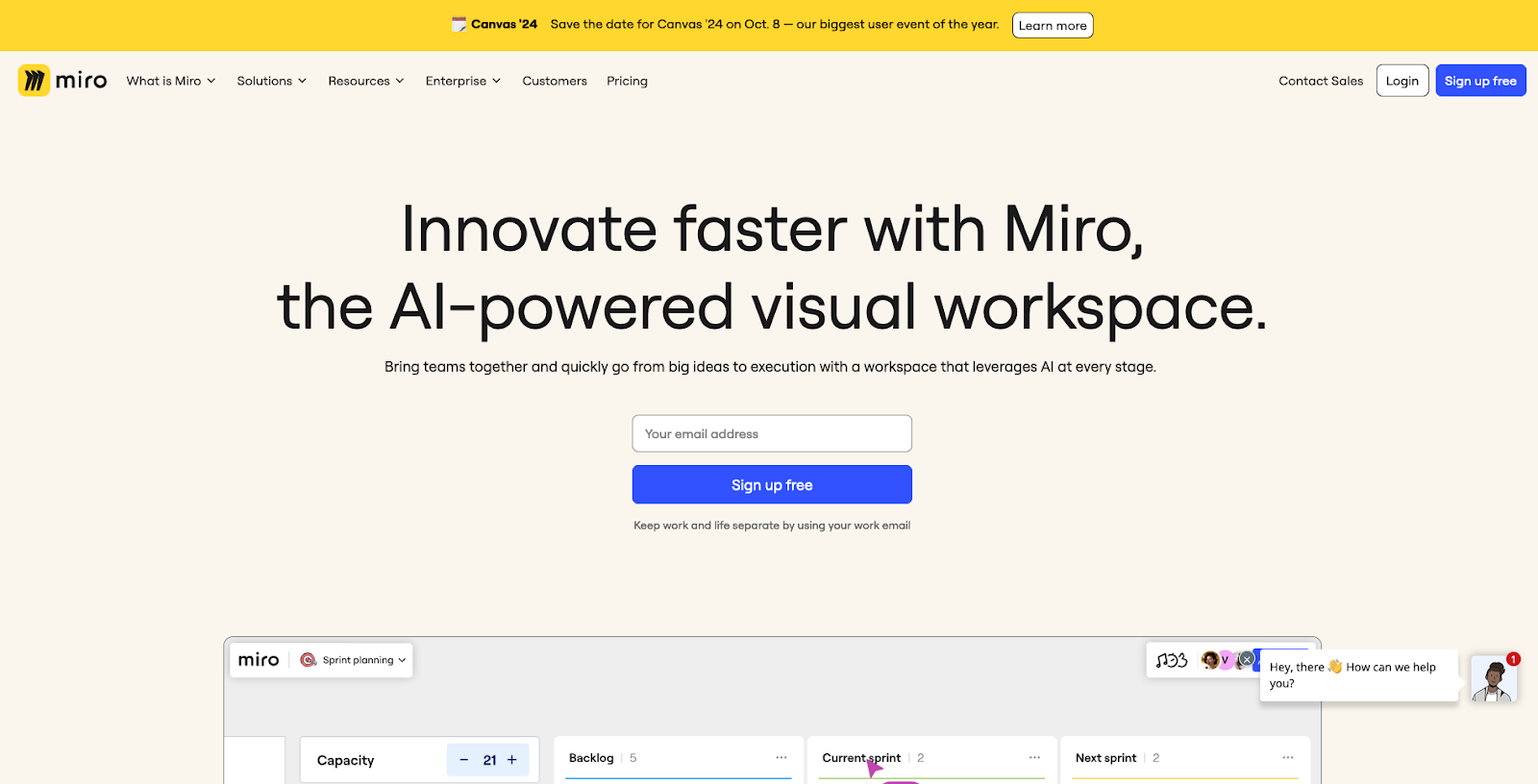
Miro is a digital canvas tool specializing in team collaboration and project management. While its primary use case is designing workflow diagrams, it’s still a capable platform for UI design with real-time updates and shared boards.
Like Figma, Miro offers a range of design tools and supports wireframe and CSS components. It provides plugins and integrations for various tasks, including automation, video conferencing, and project tracking with tools like Asana and Slack. This makes it adaptable for cross-functional teams. Miro is browser-based with desktop and mobile apps on Windows and macOS.
Best for: Collaborative whiteboarding, early ideation, mapping, and visual workflows
6. Proto.io (A UX design tool that turns designs into prototypes)
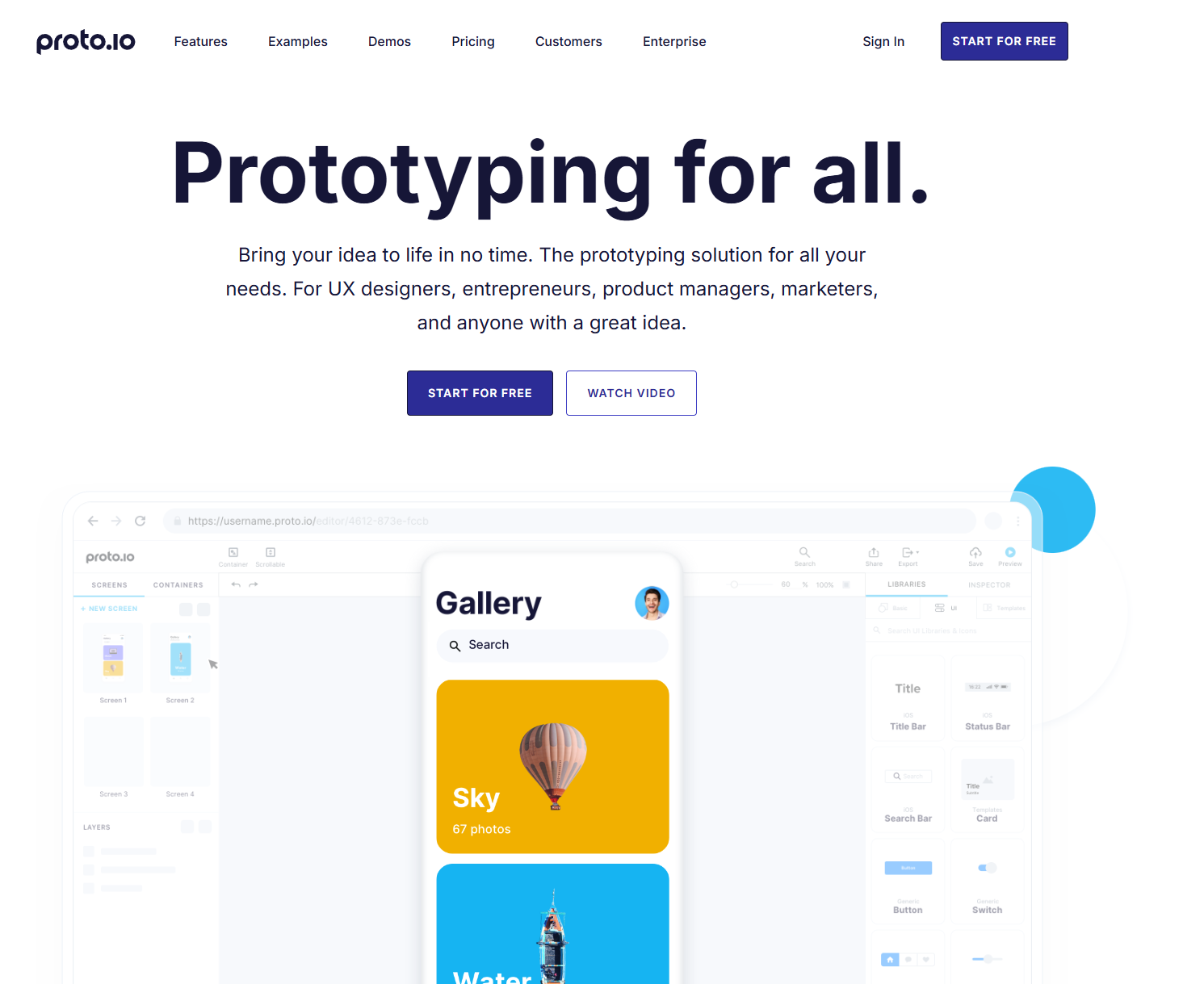
Proto.io is a web-based, user-friendly UX design tool that specializes in turning your designs into functioning prototypes. It can export your prototypes into PDF, PNG, or HTML and offers the same collaboration and design features as competitors.
The only place it falls short is in its relatively short list of integrations — Proto.io only works with a handful of task management tools.
Best for: Interactive, device-ready prototypes (especially mobile)
7. Moqups (A mockup, wireframe, and UI prototyping tool)
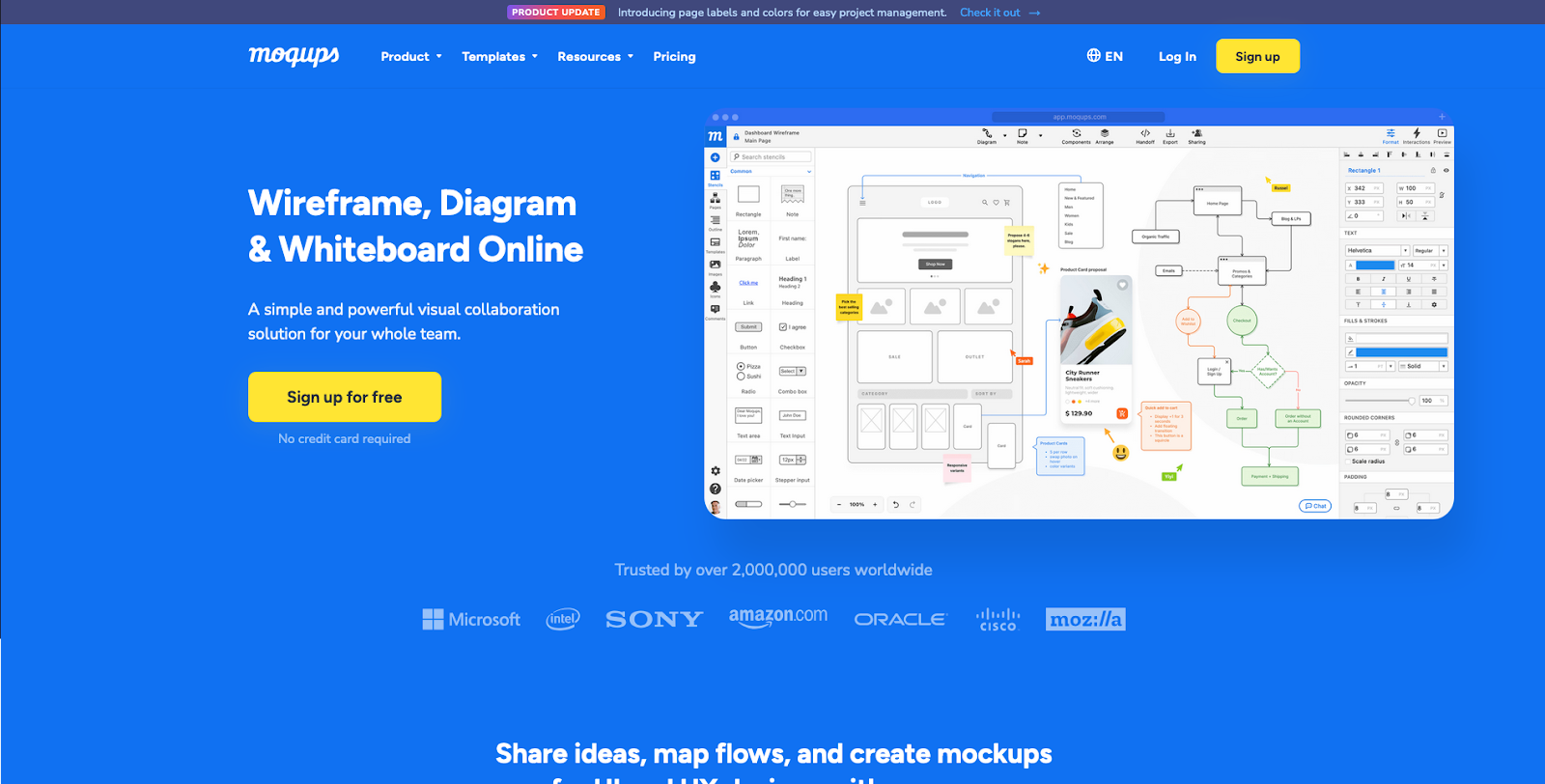
Moqups is a uniquely powerful Figma alternative because it offers most of the same features, like wireframing tools and prototyping, at a lower cost. Its real-time collaboration is faster and more reliable but only if you have a stable internet connection — Moqups doesn’t have an offline mode and only works in a web browser.
Moqups offers helpful features like drag-and-drop editing, a smooth feedback system, and export options in formats like PDF and PNG. If you don’t mind its offline limitations, you’ll find it relatively easy to use thanks to its detailed tutorial and vast library of templates. Integrations include Google Drive, Dropbox, Box, Slack, and Atlassian products (Jira/Confluence) for workflows.
Best for: Quick wireframes, diagrams, and lightweight mockups
8. Mockitt (A cloud-based UI/UX design and prototyping platform)
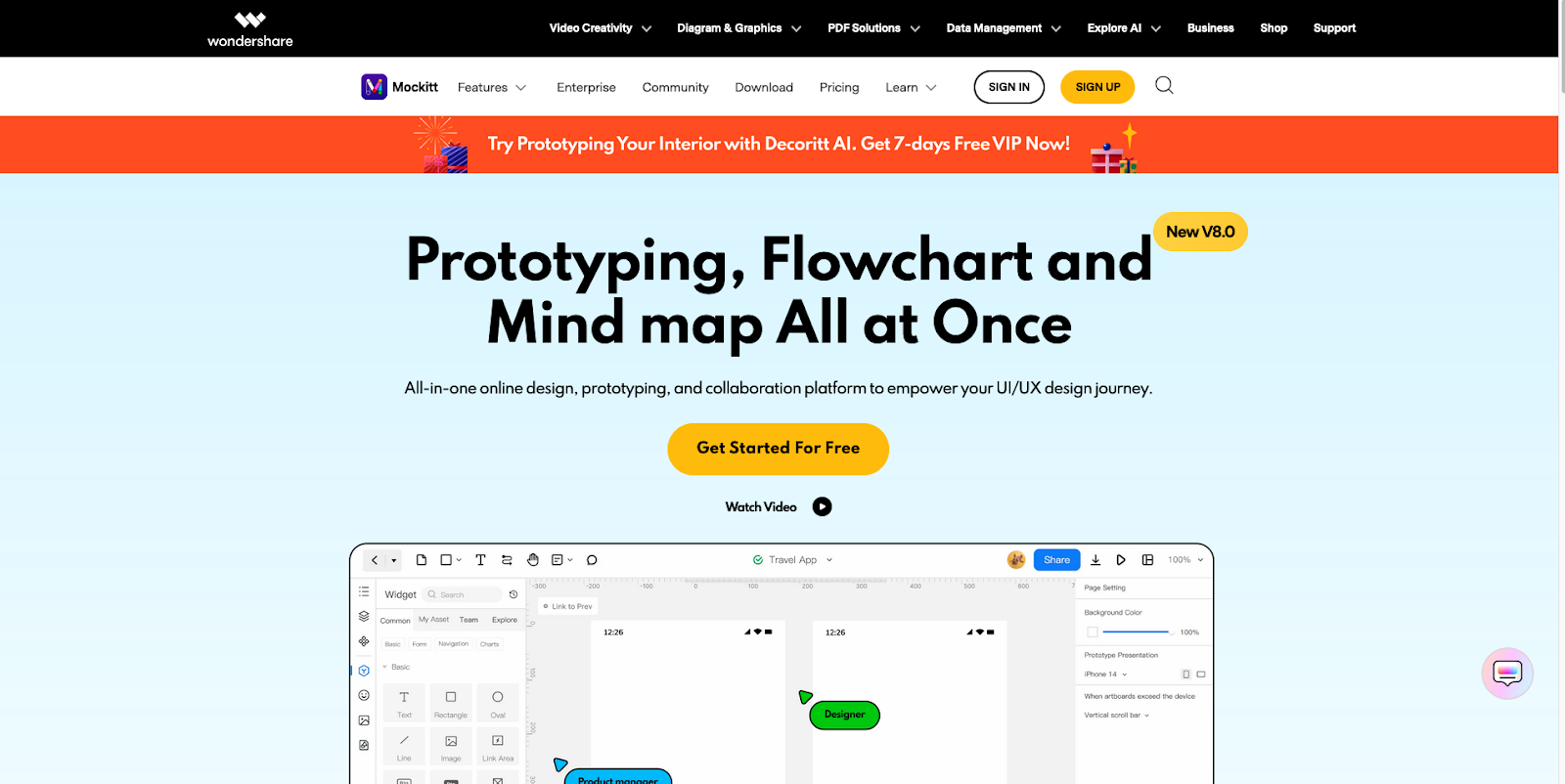
Mockitt is a full-featured online design and prototyping tool for UIs, flowcharts, mind maps, and anything requiring a digital canvas. It’s quite easy to learn thanks to an intuitive UI that clearly labels all its features and makes them available in a straightforward toolbar. The software also leverages artificial intelligence (AI) tools that generate components, prototypes, and personalized text. And Mockitt offers real-time co-editing, user testing, and feedback collection, making it ideal for teams.
Mockitt exports prototypes to HTML and integrates with collaboration and project tools (Slack, Trello, Jira) and embed links into Confluence (Mockitt+ add-on). It’s cloud and web-based, accessible from nearly any OS via browser with some desktop and web app support on Windows and macOS.
Best for: Rapid prototyping with basic UI tools (especially beginners/small teams)
9. Justinmind (A no-code prototyping and wireframing tool)
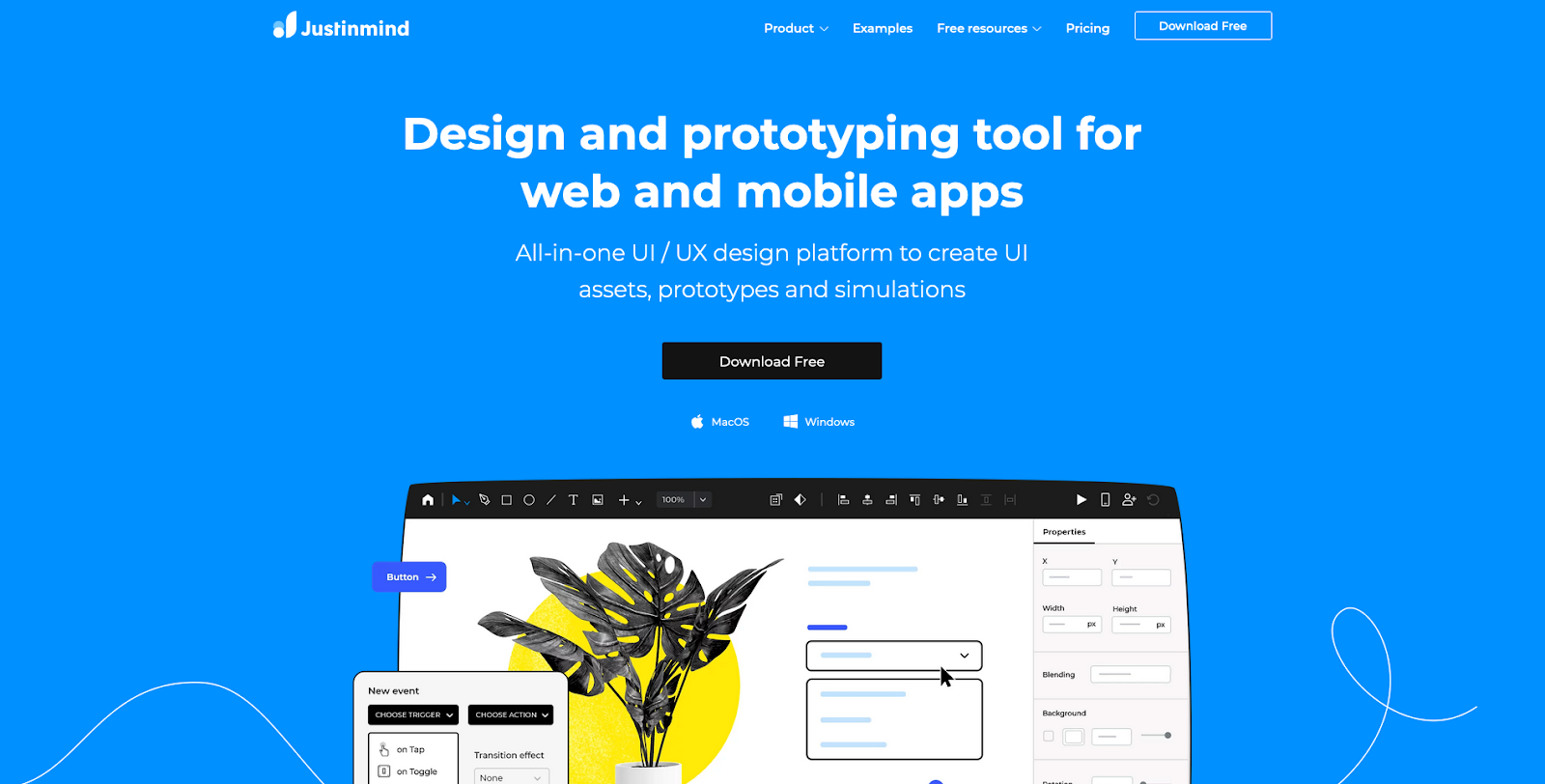
Justinmind is a design tool that builds responsive, stable, and deeply interactive prototypes. You can animate them, use conditional logic, and even run simulations that test how well your prototype stands up to possible real-world situations. The UI design program excels at creating vector graphics thanks to its powerful pathfinder and mask features. It also supports reusable components, custom libraries, and multiple device previews, giving users flexibility across diverse projects. With these tools, you can quickly turn vector elements into masks and design truly unique layouts.
You can export prototypes to HTML/CSS/JS. Justinmind uses plugins and syncs with tools like Sketch, Adobe tools, Figma import; Jira/Confluence integration for workflow; and developer inspector plug-ins export assets/CSS. It also has an API/SDK for custom plugin generation. Justinmind has native apps for Windows and macOS.
Best for: High-fidelity interactive prototypes and UX validation
10. Webflow (An all-in-one design-prototype-build platform)
With Webflow, you can design, prototype, and build all in one platform, eliminating the need to start in a separate design tool and then transition to a web platform. Streamline your team’s workflow by designing and building simultaneously — this allows for faster iterations, real-time updates, and responsive designs that are quickly production-ready.
Webflow offers real HTML, CSS, JavaScript code export of your site’s front-end (production-ready static code) on paid plans. It integrates with custom code embeds, interactions, and can work with third-party form and functional backends once exported. Webflow is a browser-based SaaS with desktop previewers, and it works on Macs and Windows via browser.
Best for: No-code web design & production-ready deployment
In Webflow, you can:
- Quickly add reusable components and edit content on-canvas, so every design you make is ready for publishing without placeholders or dummy data.
- Create responsive designs that render perfectly on every device without needing to create separate files for different layouts.
- Scale content with built-in CMS features that allow teams to edit and publish without relying on developers.
- Edit content on the live page and optimize your site for search.
Whether you’re just getting started or looking to grow, Webflow enables you to create functional prototypes in real time with interactions and faster iterations.
Which alternative is right for you?
The best Figma alternative depends on your skill level and design and prototyping needs.
If you’re in the early idea phase and looking for team alignment, Miro or Moqups are great options. Sketch, Adobe XD, and Penpot are ideal for visual UI and interface design. For advanced UX flows and prototypes, consider Axure RP, Justinmind, or Proto.io. If you just want beginner and lightweight prototypes, Mockitt is sufficient. And lastly, if you want full web production without coding, Webflow is your best option.
Streamline your workflow with the Figma to Webflow plugin
No matter which option you choose, if you continue designing in Figma, you can find a program that suits your UI design needs and your budget.
But if you’re still on team Figma, you can use the Figma to Webflow app to copy and paste your Figma designs directly into your Webflow website.
Get started with Webflow and the Figma to Webflow app to sync your design system and ensure nothing gets lost in translation.

Figma to Webflow
Learn our design process from concept to completion and build a site from scratch using Figma, Cinema4D, Lottie, and Webflow.